

How to create Facebook stories through ContentStudio
With ContentStudio, you can easily craft, plan, and get a sneak peek at your favorite stories for Facebook. Here's a step-by-step guide to adding Facebook Stories to your posts within ContentStudio.
In this article:
How to create a Facebook story
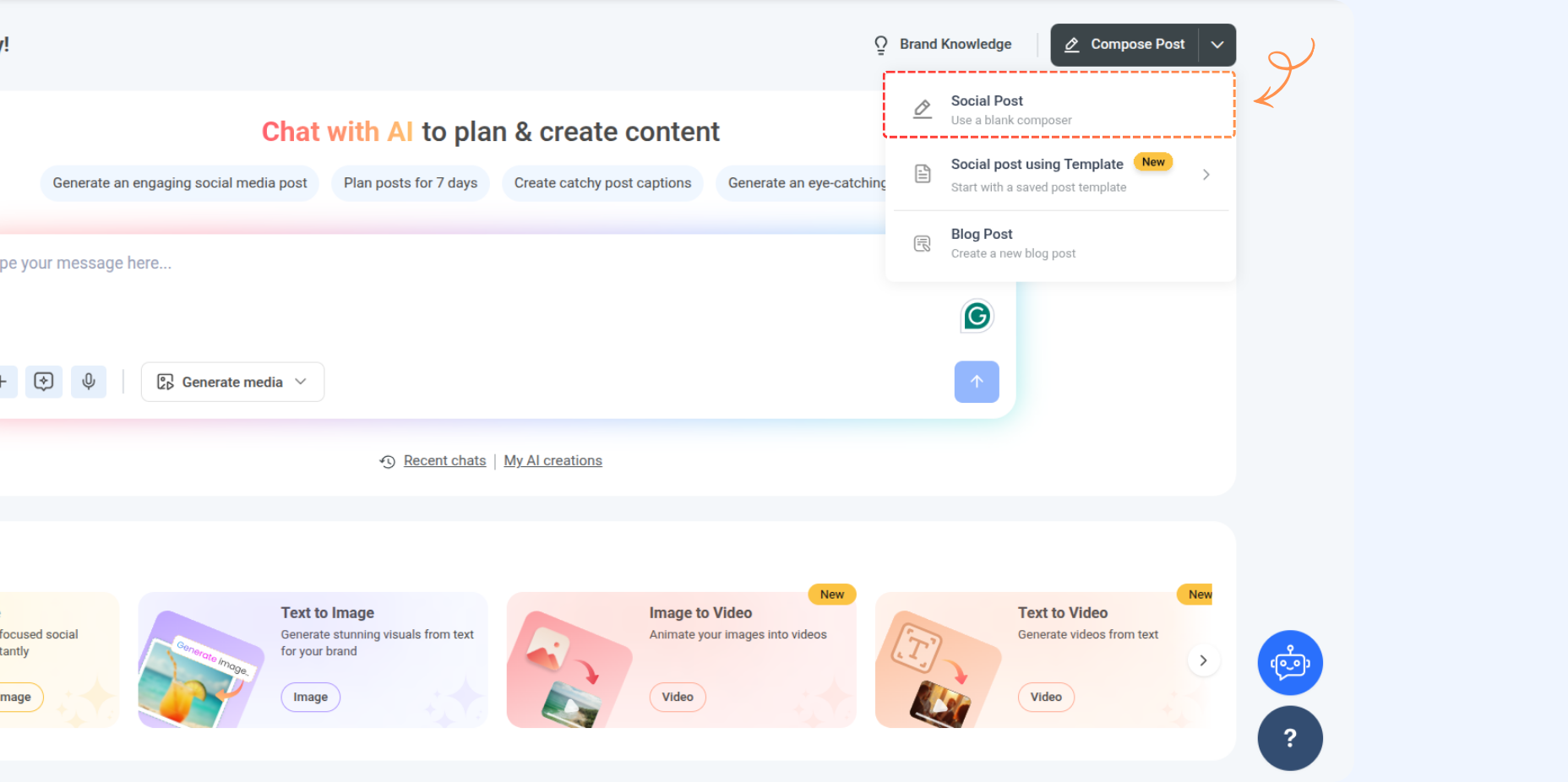
Navigate to Compose and click the Social Post tab.
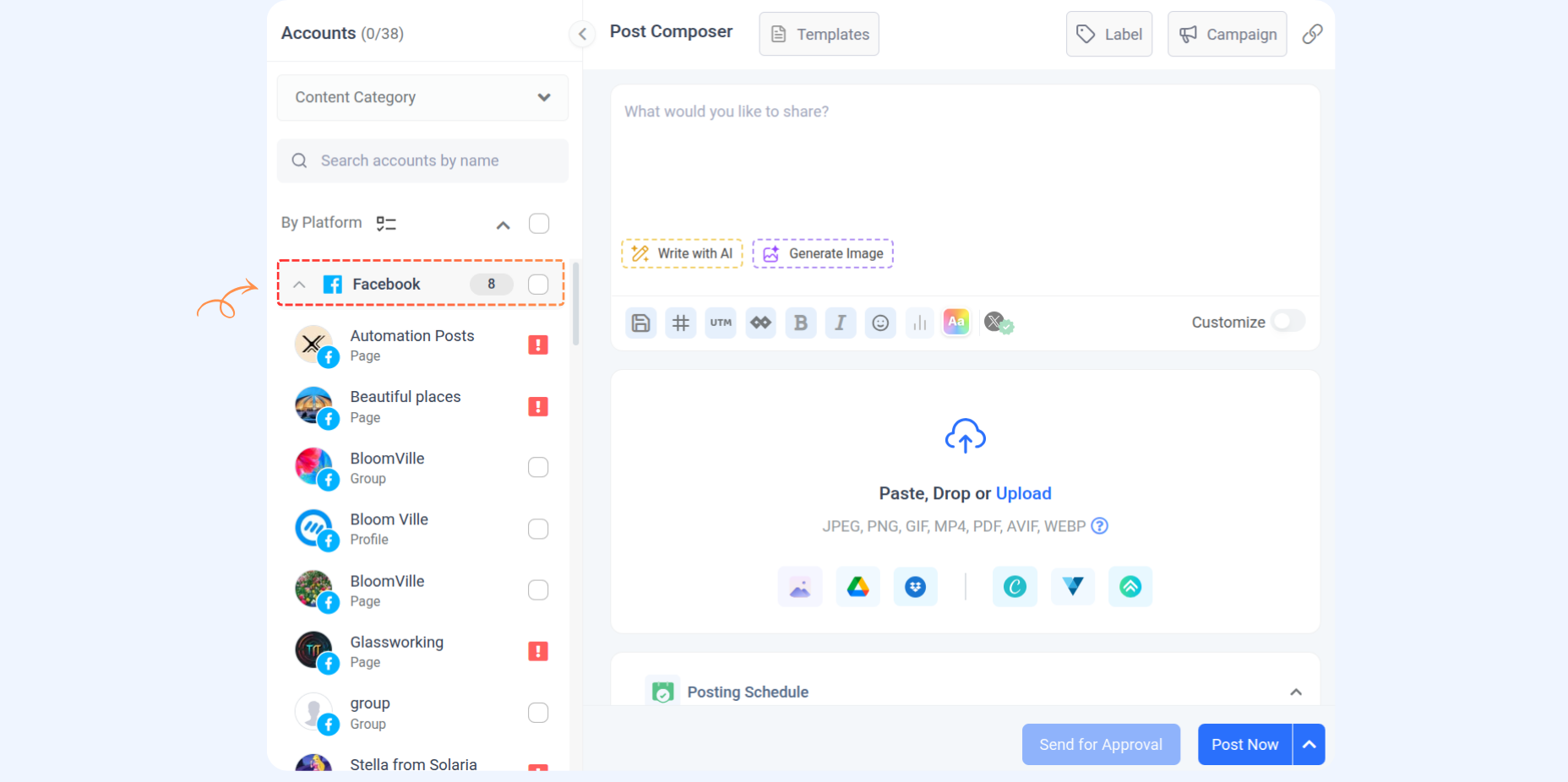
Select the Facebook Page from the accounts on the left panel.
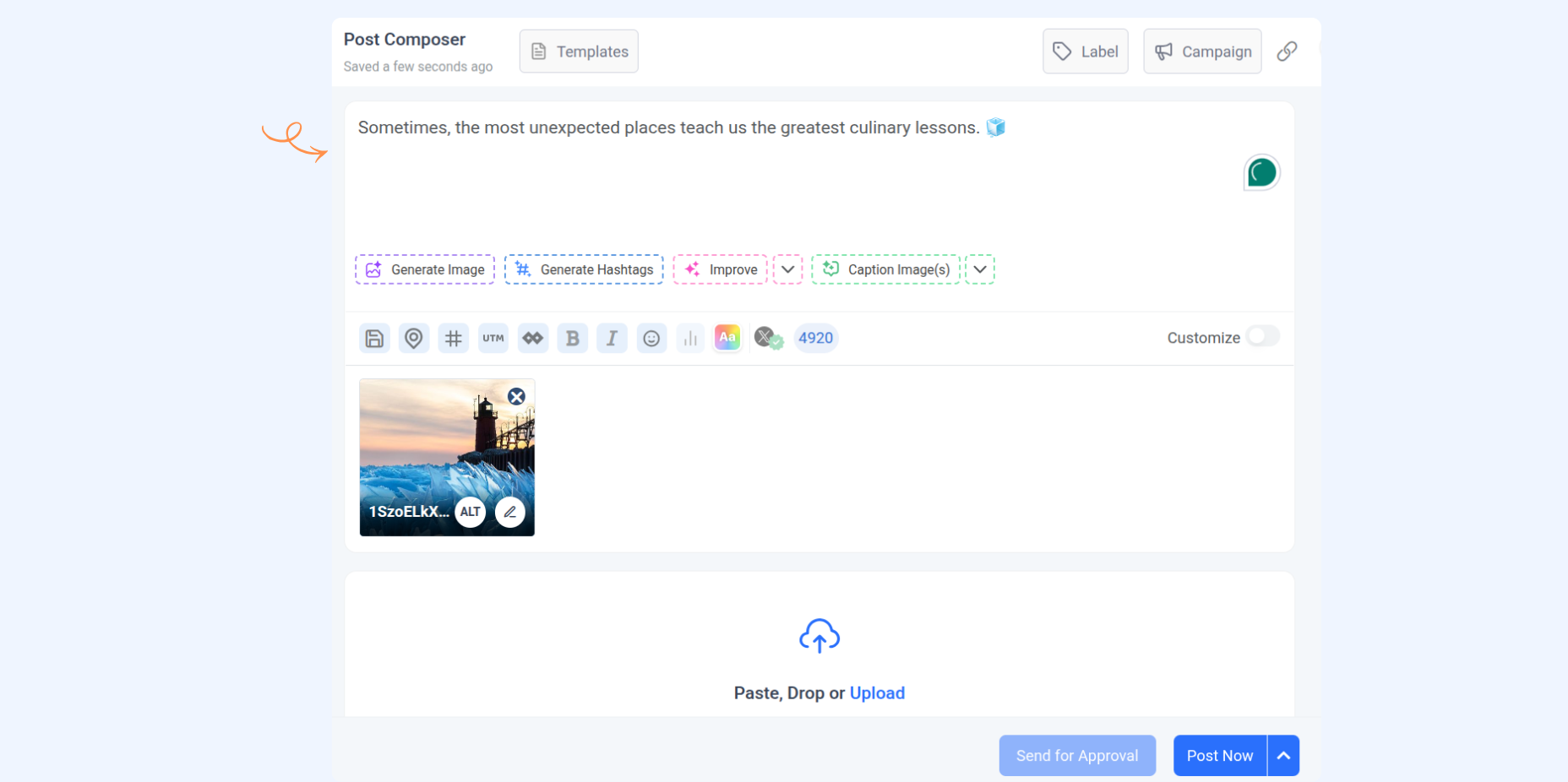
Add your story caption in the Post Composer and click the Upload Media tab.
Technical Requirements
Type | Requirements |
|---|---|
Story Media | Single or up to 10 images/videos |
Image | Format: JPEG (JPG), PNGFile Size: max 8 MBAspect Ratio: 9:16 recommended (to avoid cropping or blank space) |
Video | Format: MOV or MP4File Size: max 100 MBDuration: 3s min — 60s maxAspect Ratio: 1:1 recommended (to avoid cropping or black space) |
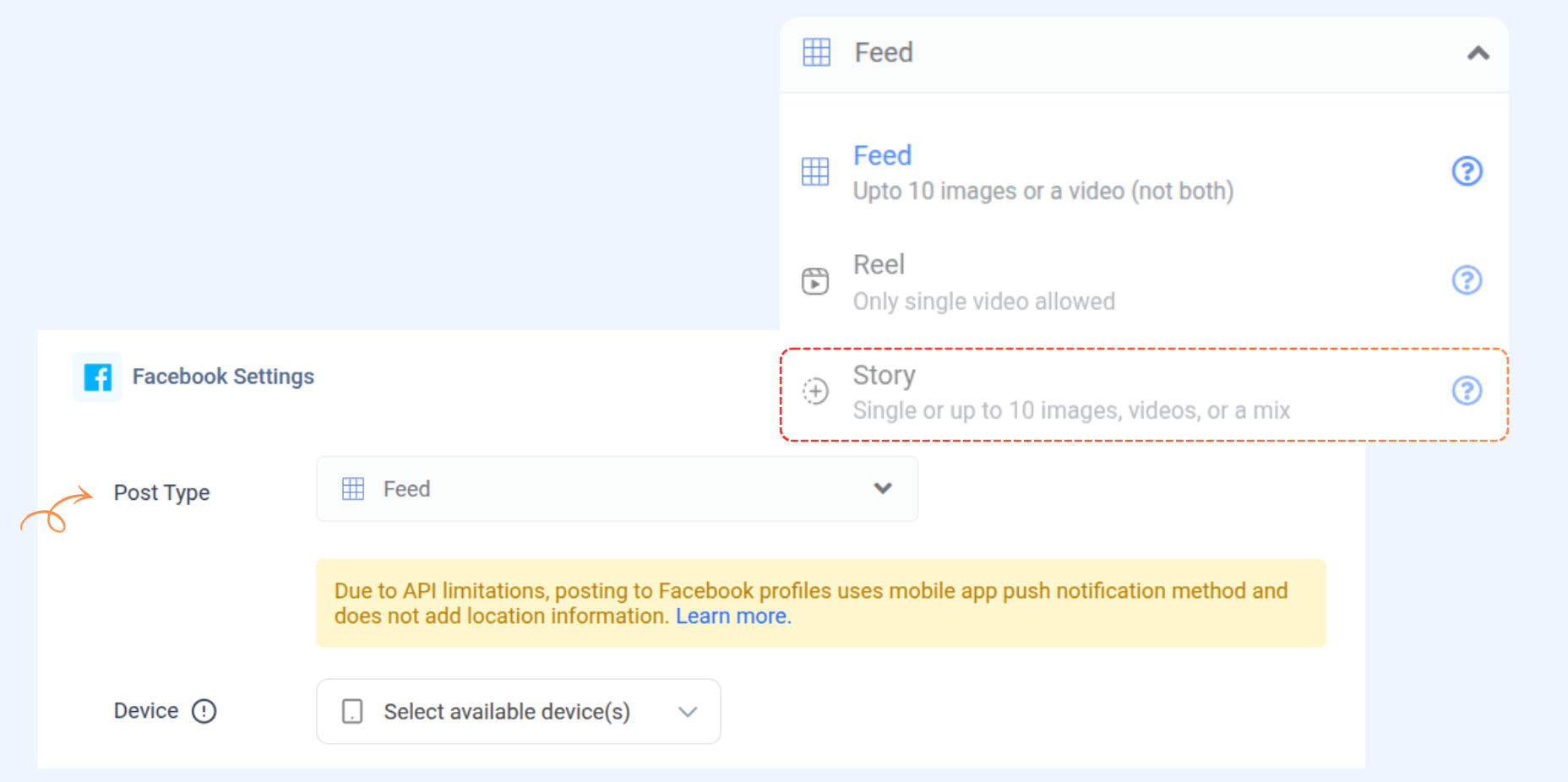
Within the Facebook Settings area, click on the dropdown and select Story.
Preview your story
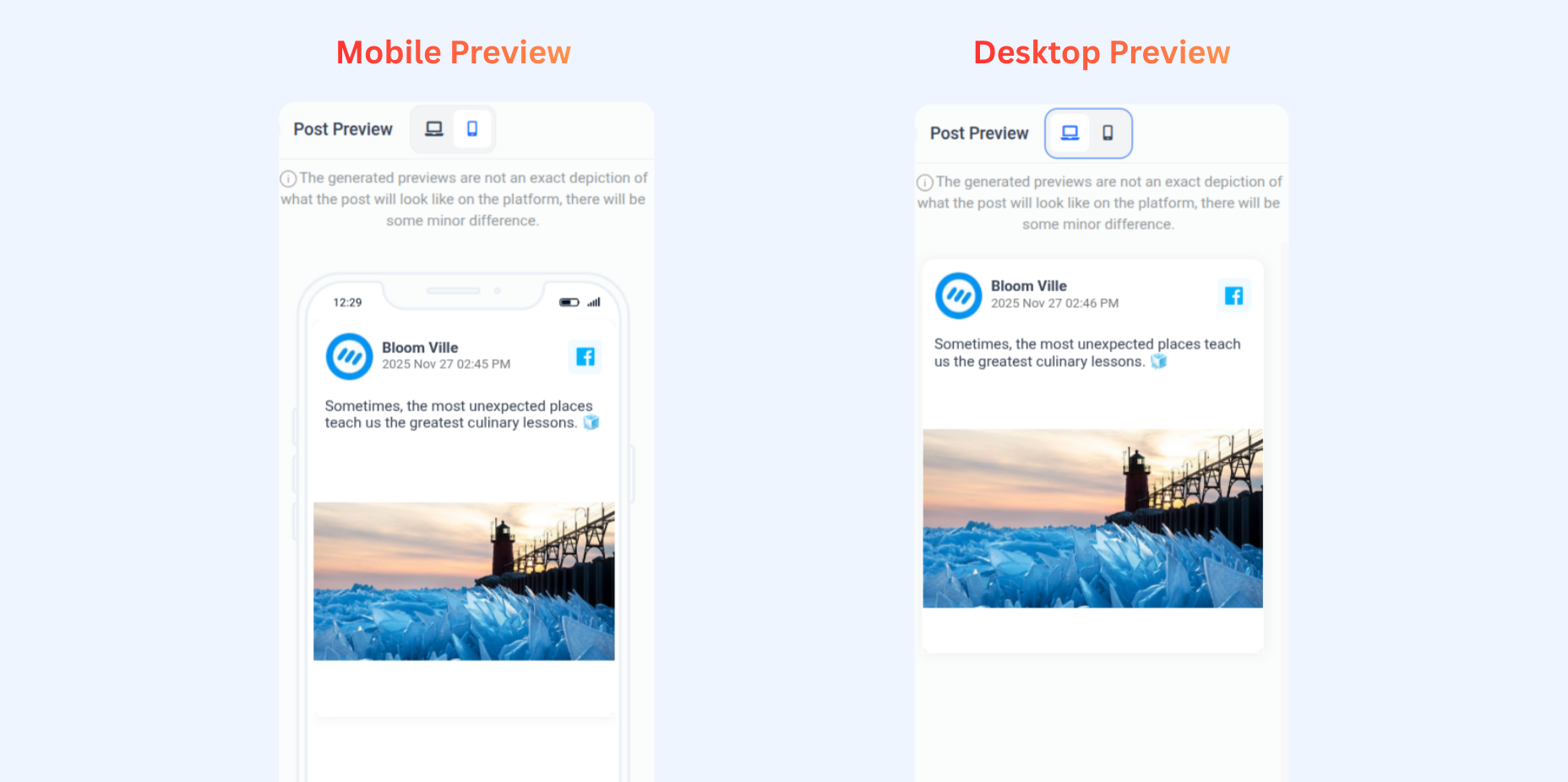
Once you are done with the above settings, you can see your post’s Live Preview. The preview on the right pane shows how your post will appear on both Mobile and Desktop once published.
Choose posting schedule
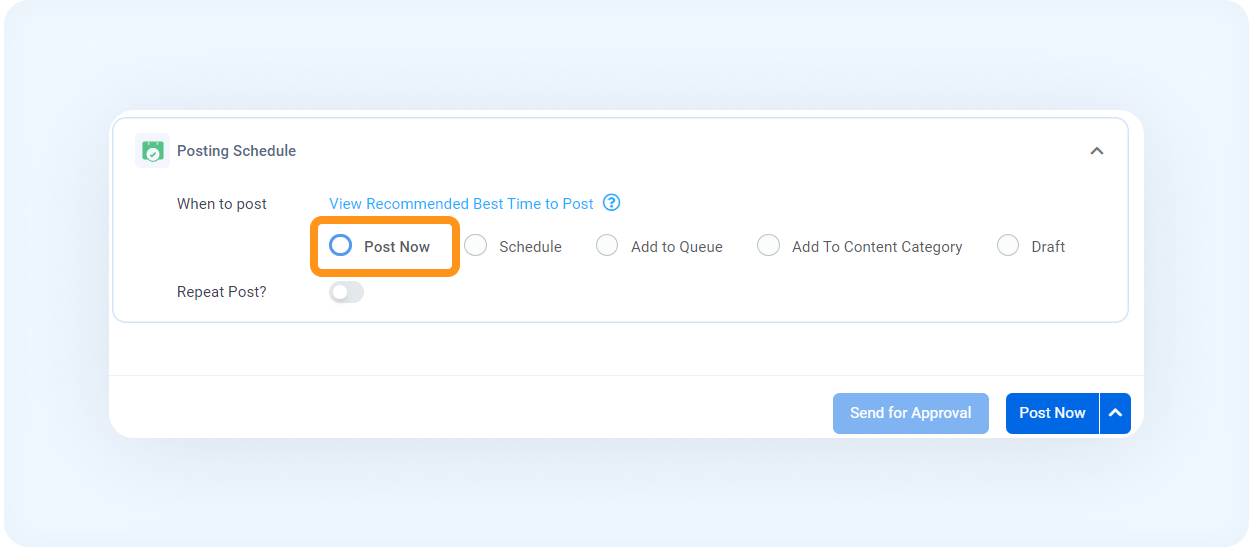
Select Post Now to instantly share your post.
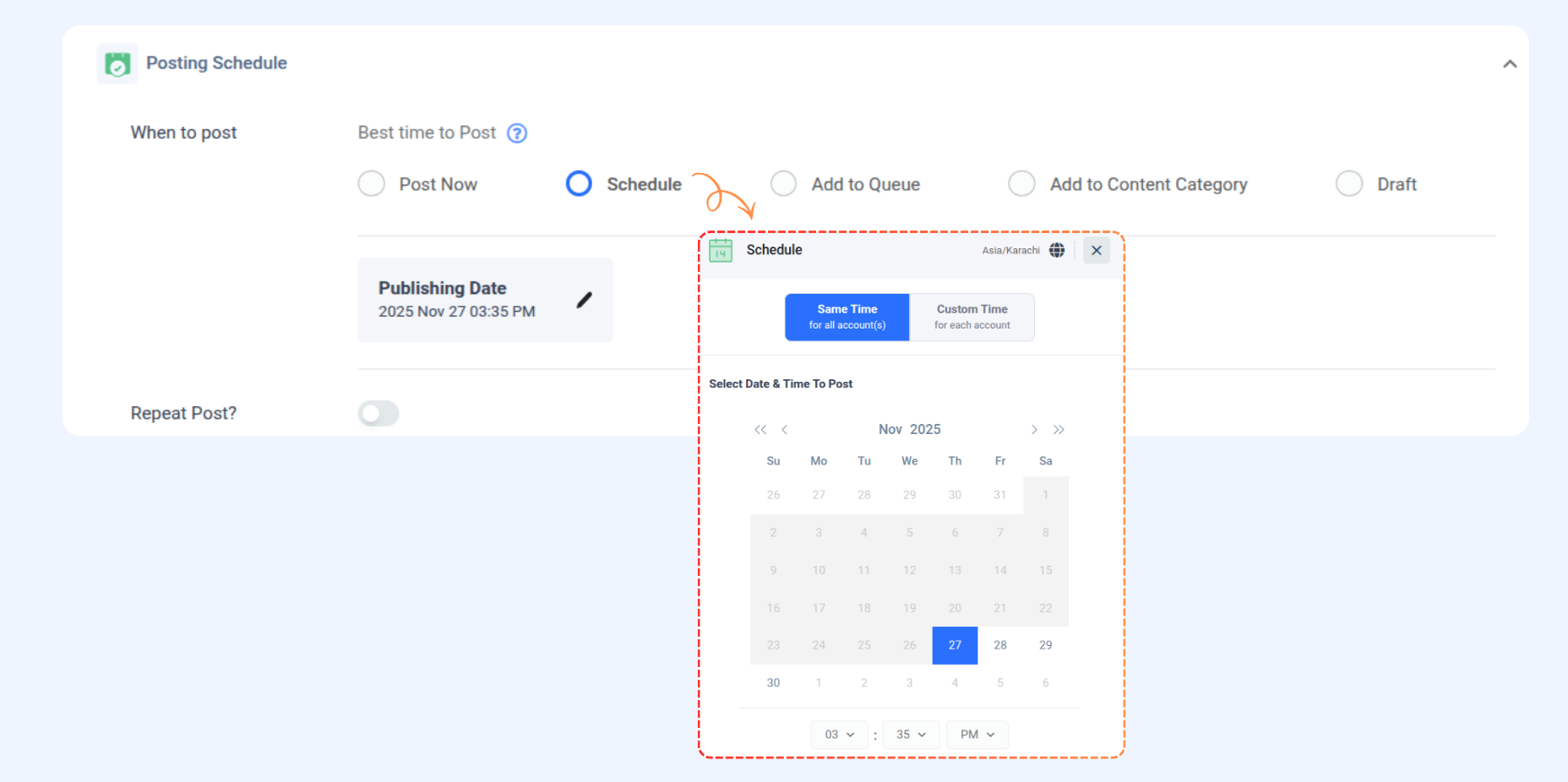
Schedule: If you want to schedule the post for later, select Schedule and choose a future date and time.
Add to Queue: Add this post to your Social Queue; click here to learn more.
Add to Content Category: Add this post to a Content Category queue; click here to learn more.
Draft: Save this post as a draft to edit or publish later.
⭐ Have fun creating engaging Facebook Stories!
FAQs
Q1: What happens if my video is longer than 60 seconds?
A: ContentStudio will only allow you to post the story within 60 seconds.
Q2: Can I add text overlays or music to my stories?
A: Unfortunately, adding text overlays or music directly in ContentStudio isn't available. You can, however, create your images or videos with these elements beforehand and then upload them to your story.
Q3: Can I share the same story on multiple Facebook Pages?
A: Absolutely! Just select all the Pages you want to share in step 2. Your story will be published automatically on each chosen Page.
Was this article helpful?