

How to remove the global category from all workspaces?
Managing content categories helps keep your content organized. If a global content category is no longer relevant or conflicts with your current strategy, ContentStudio makes it easy to remove it from all workspaces in just a few clicks. 🌟
In this article:
Step-by-step process
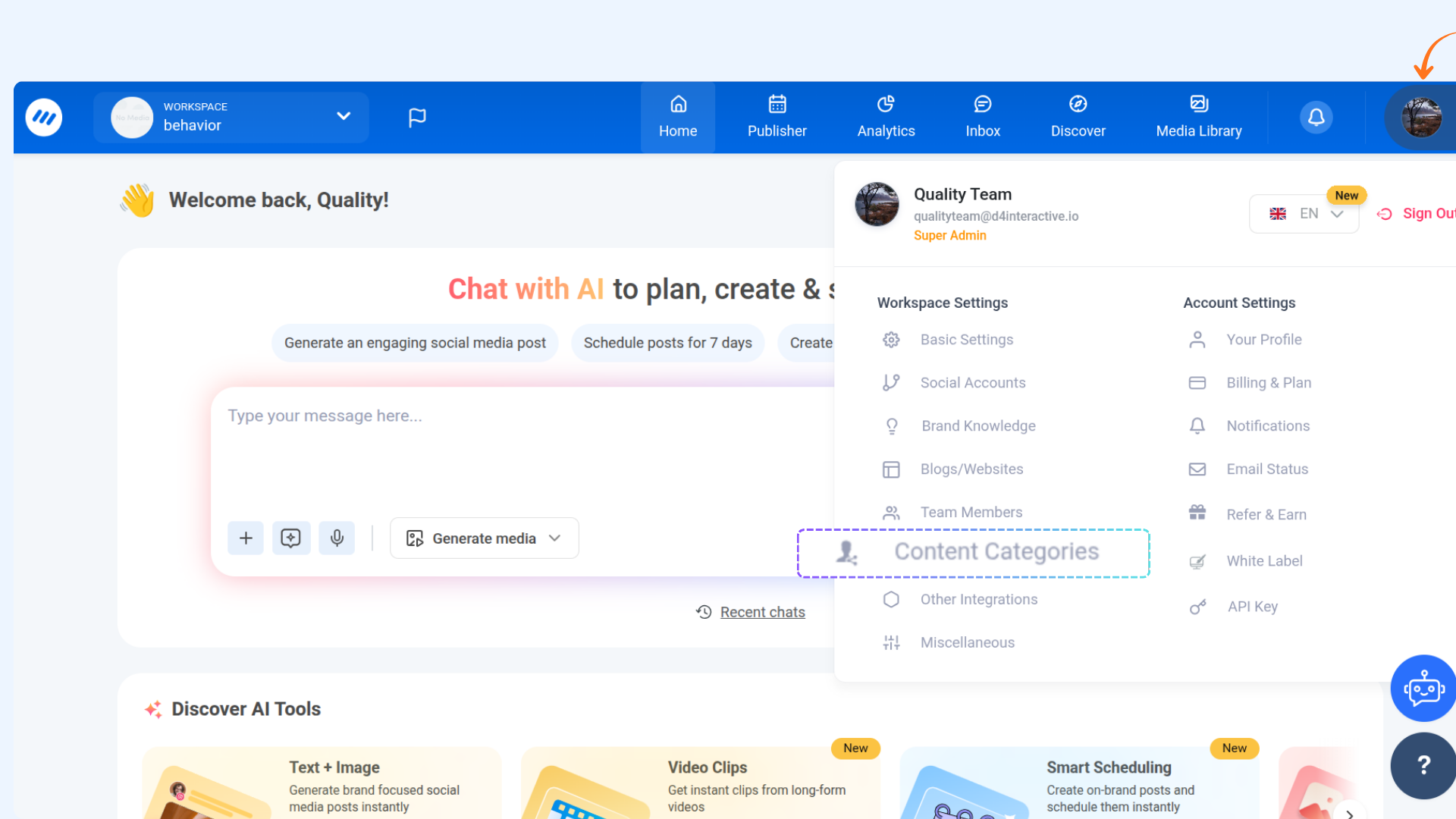
Go to Your Profile → Content Categories.
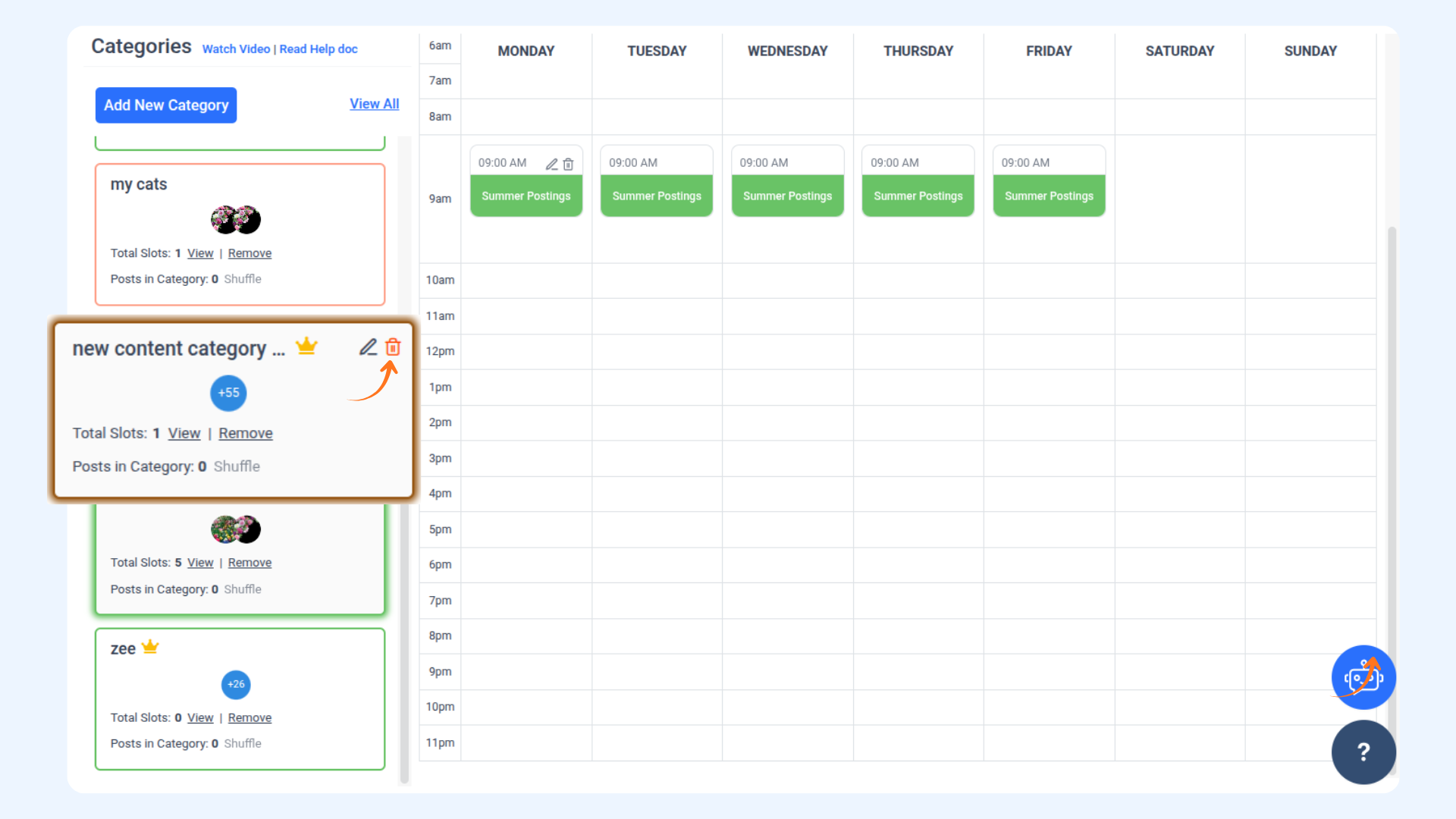
Select the Global Category (with a crown icon) you want to delete. A Delete option will appear in the top-right corner.
While deleting, you will see an option: "Also, I want to delete this global category from all workspaces.".
Check this option to remove the category from all workspaces and click Continue.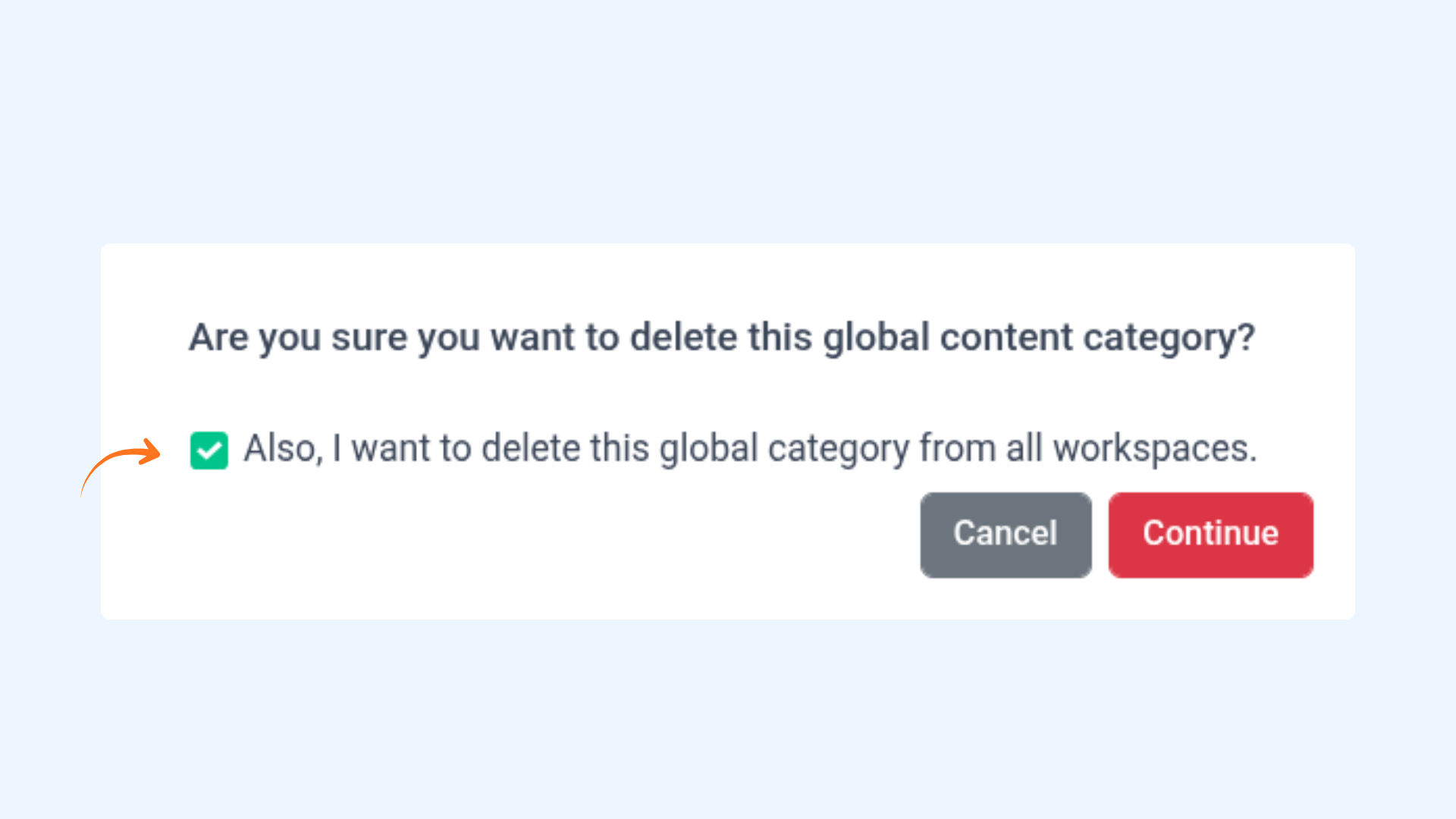
FAQs
Q1: Can I restore a deleted Global Category?
A: No, it cannot be restored once a Global Category is removed from all workspaces. You will need to create a new category from scratch.
Q2: Will deleting a Global Category affect my scheduled posts?
A: No, removing a Global Category will not impact your already scheduled or published posts.
Q3: Can I remove a Global Category from selected workspaces only?
A: No, once you select the option to remove the category from all workspaces, it will be deleted from all associated workspaces.
Was this article helpful?