

How to use Instagram Grid View in ContentStudio
Level up your Instagram game with ContentStudio's powerful Grid View! 👏 This handy tool helps you craft a visually stunning and engaging feed that is easy to manage and organize. It is a revolutionary planner that goes beyond the ordinary. This feature on our platform empowers you with a comprehensive view of your Instagram posts.
Let us dive in!
In this article:
Navigating the grid
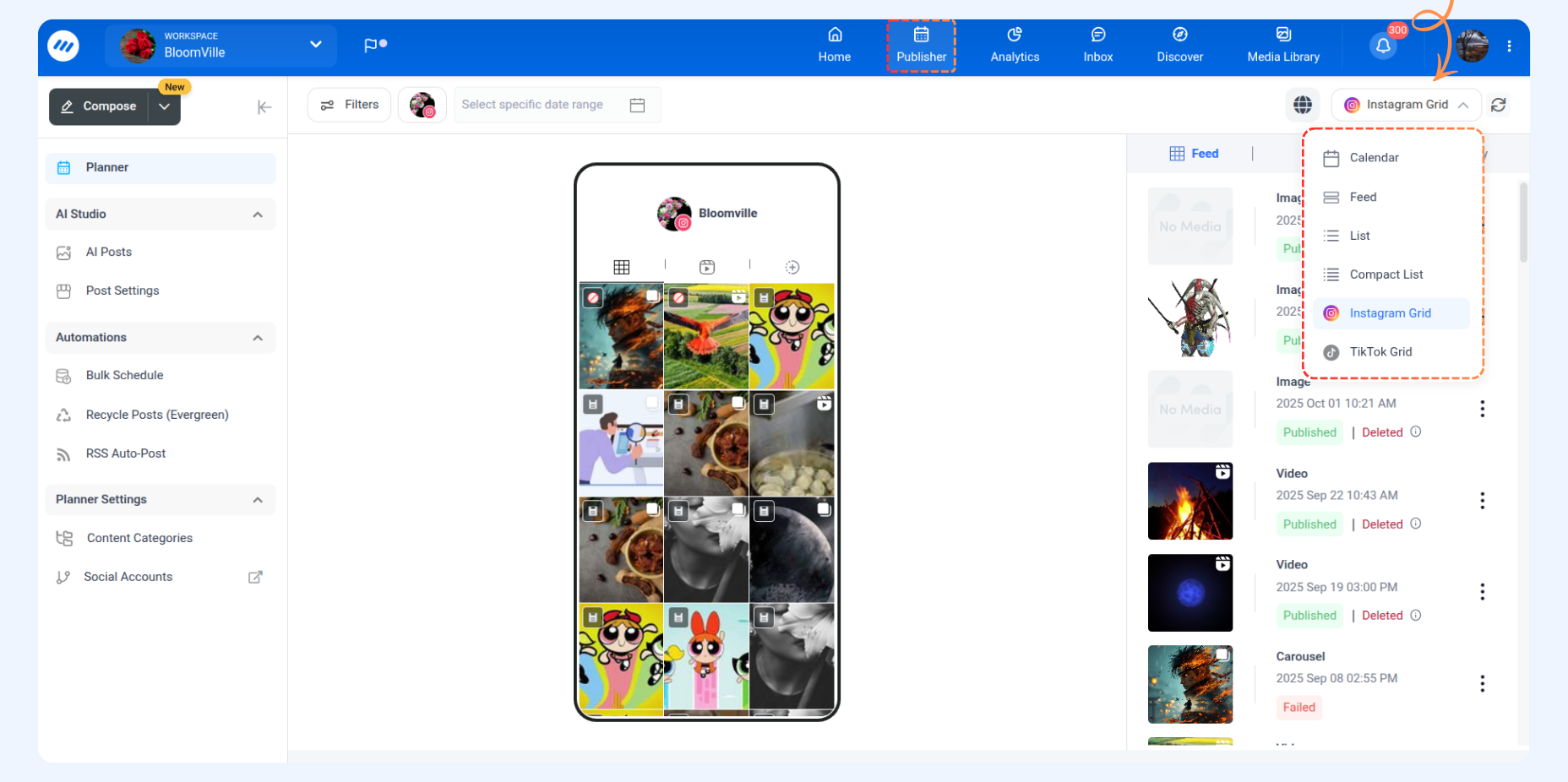
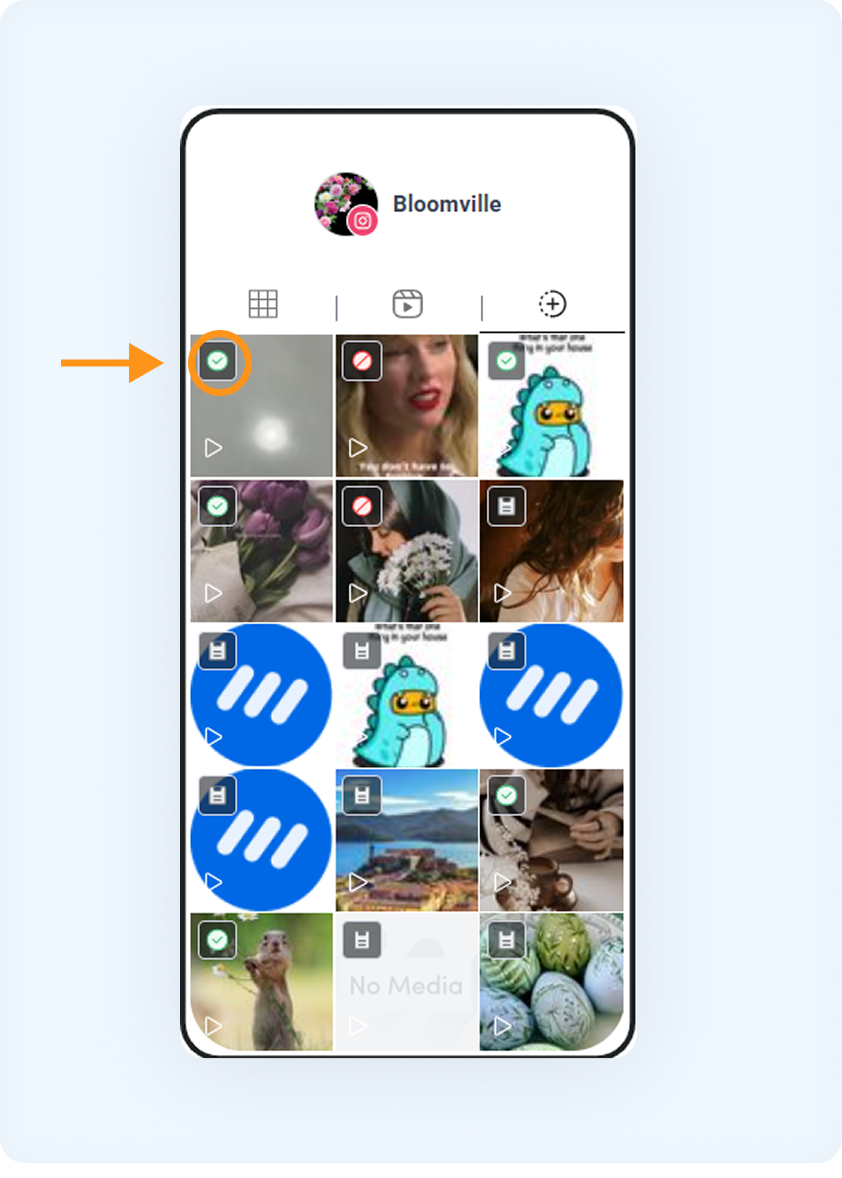
Understanding grid view
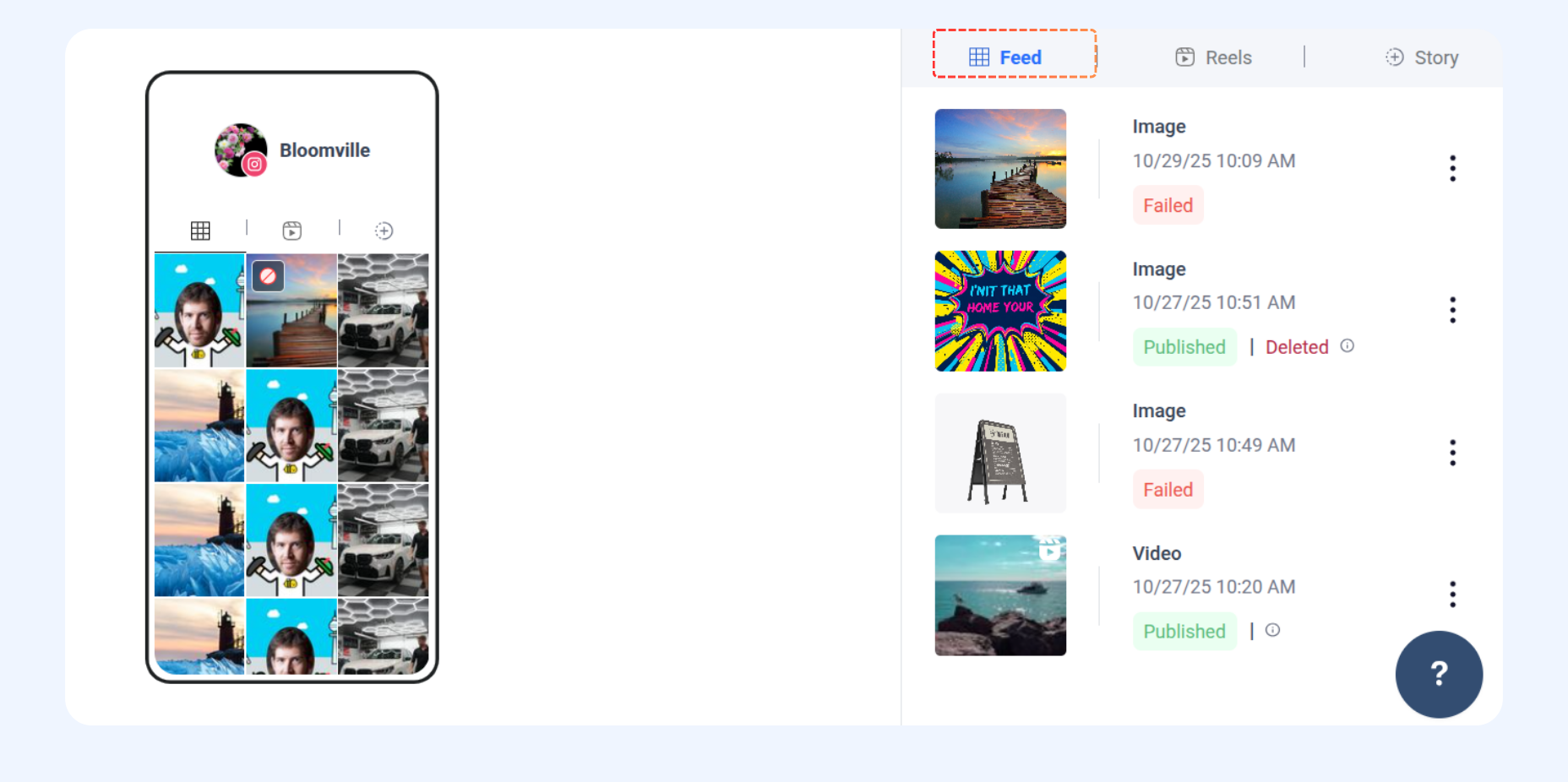
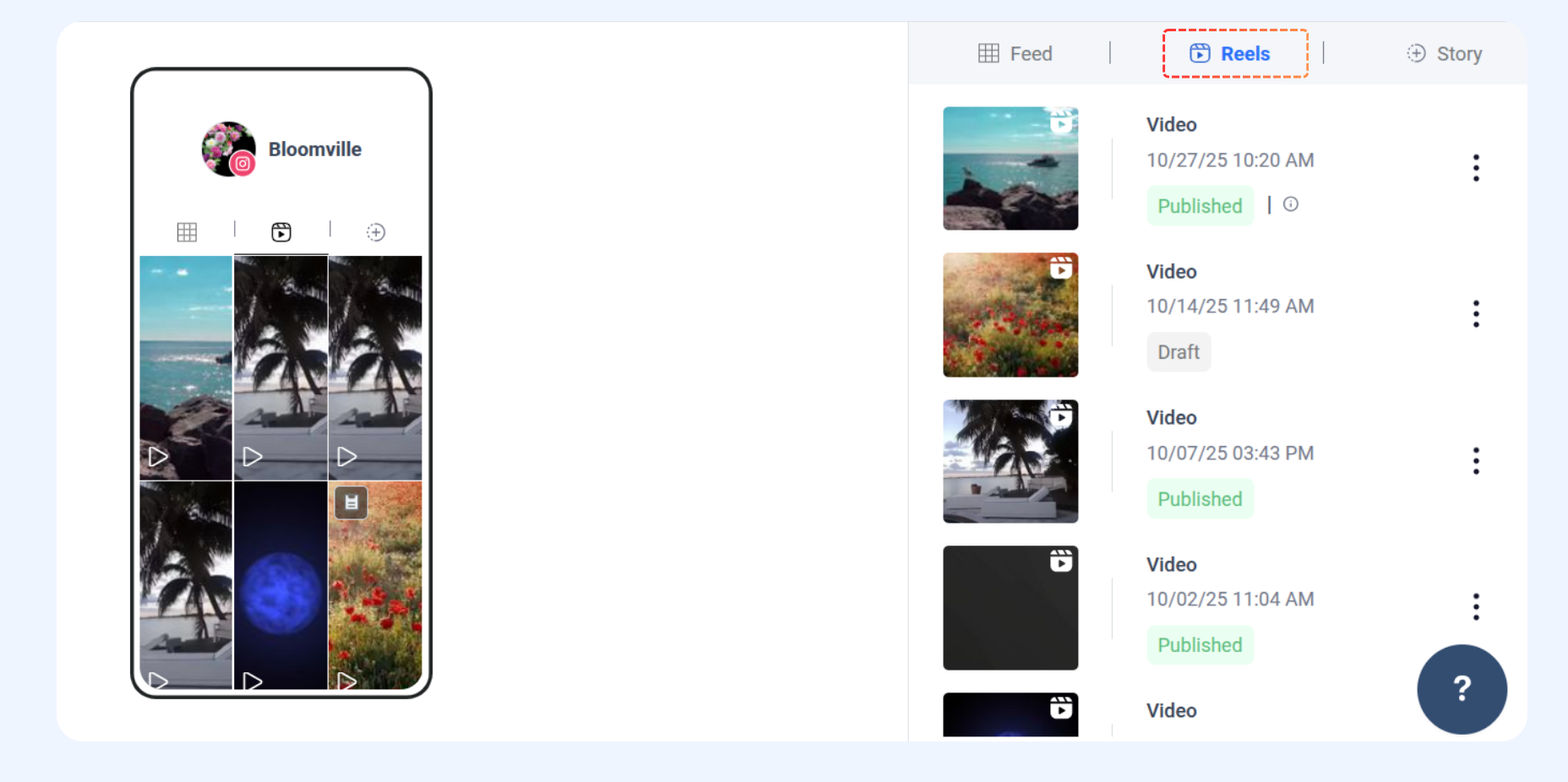
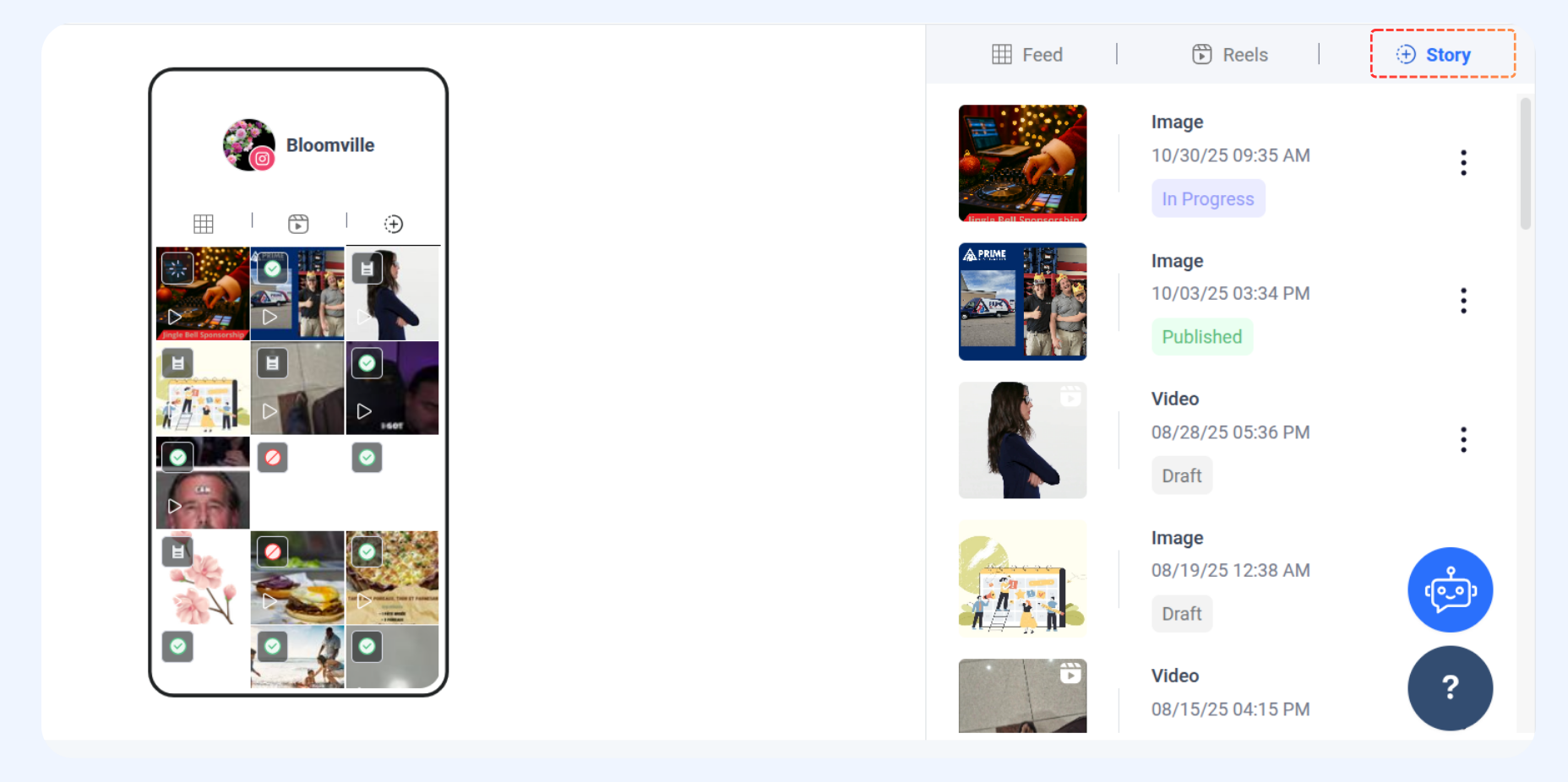
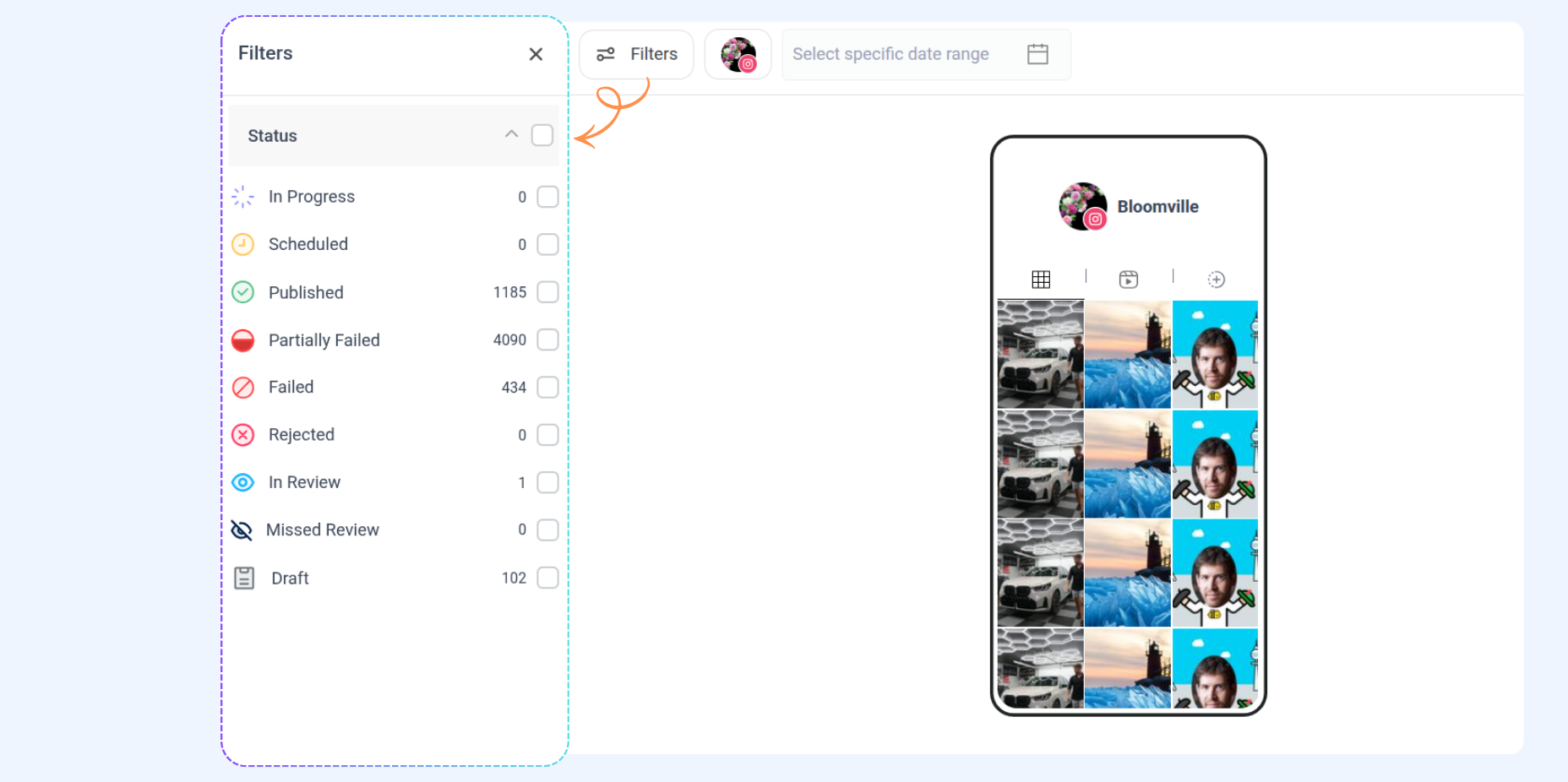
When you choose the 'partially failed' status and select a Instagram account, the system displays posts that either failed or were published on the chosen Instagram account but failed on any other platforms
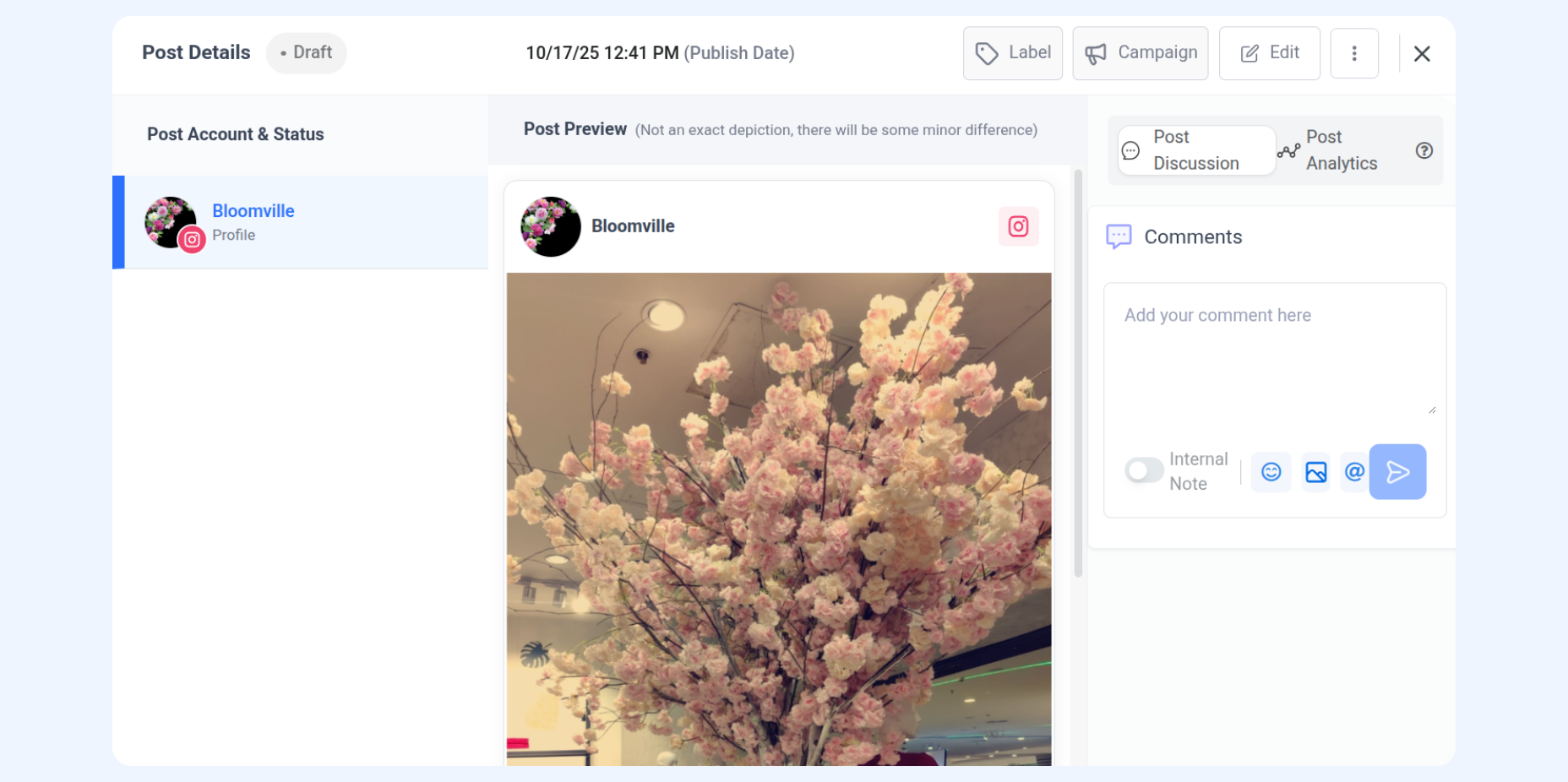
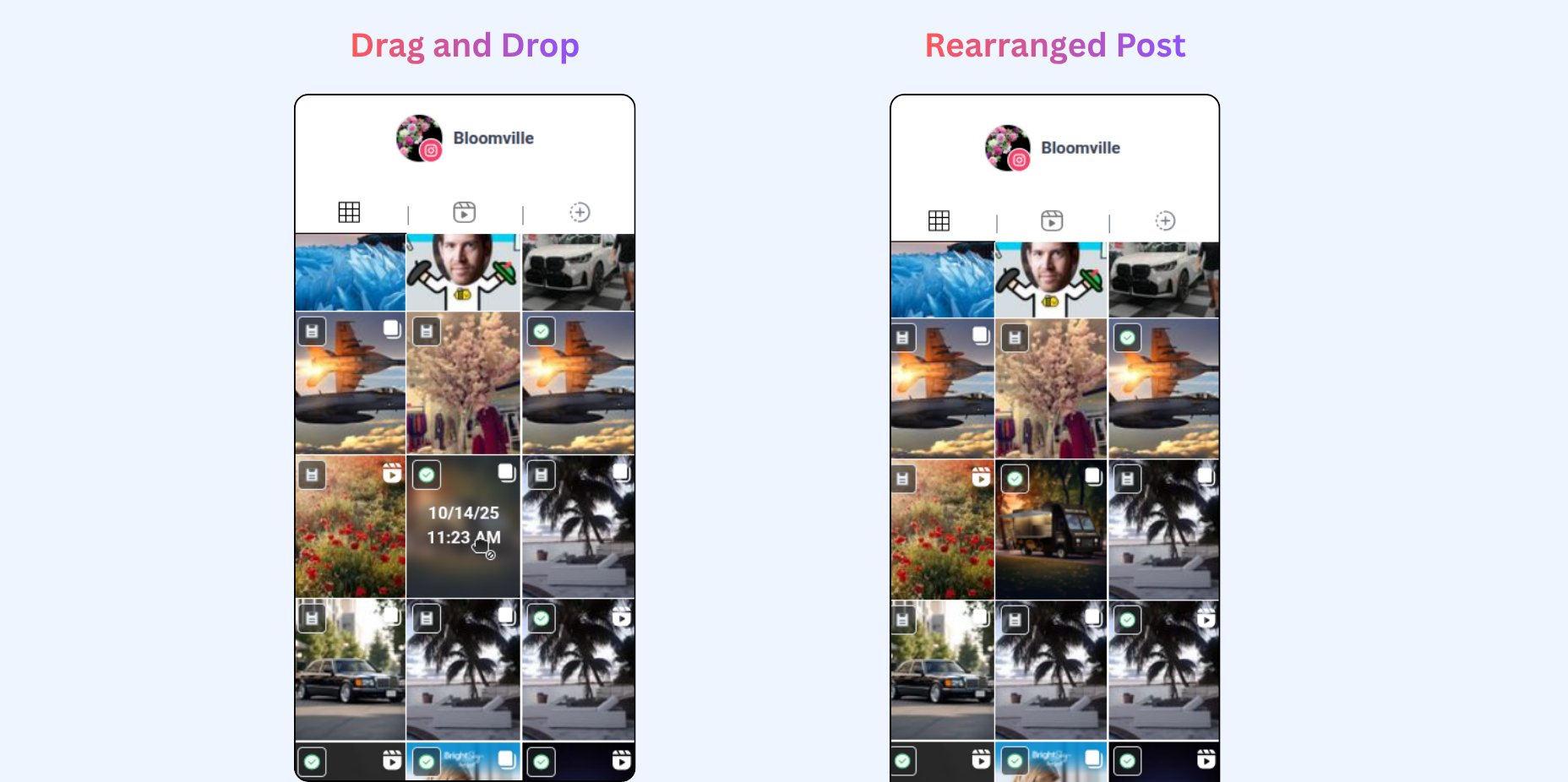
Drag Drop posts
That's all about Instagram Grid View 😊
Happy Posting!!
FAQs
Q1: Can I edit a post using the Instagram Gri d view?
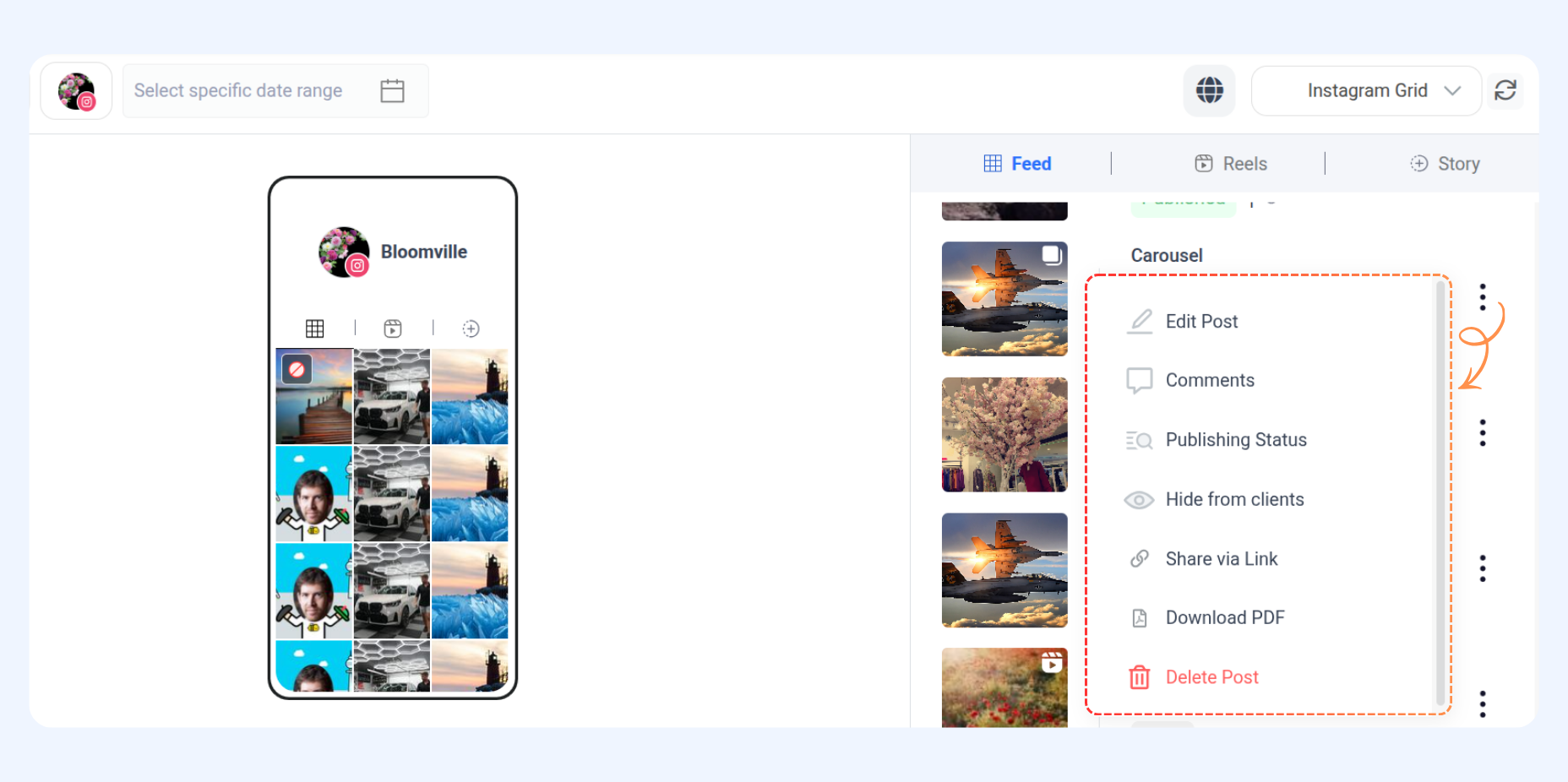
A: Yes, Navigate to the right panel, click on the three dots of the relevant post, and click the edit icon. If a post is published, you cannot edit it.
Q2: Can I filter by more than one criterion at a time?
A: The Grid View's powerful filters allow you to combine multiple criteria to narrow your search.
Q3: Does Grid View automatically update with new posts?
A: Yes, Grid View automatically updates with any changes you make to your planned posts.
Q4: What happens if I delete a published post from Grid View?
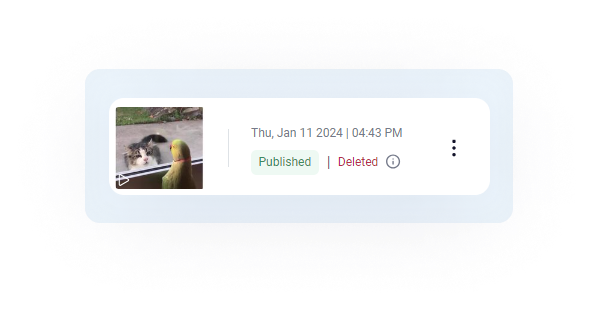
A: If a published post is deleted from the Grid View, it will only be deleted from the Grid View, not from the Instagram app.
Was this article helpful?